
Envoy Electric Car Share
Mobility as an Amenity®
For Hotel Guests
Download the Envoy Mobility app
Hotel Guest Car Sharing
Staying at a hotel or resort with Envoy? Skip the car rental counter. Stop paying for a rental car for 7 days when you can book an Envoy car share vehicle for just a few hours, only when you need it.
The Envoy Mobility app is your hotel car share app: book an electric vehicle by the hour or day and pick it up right on property. Enjoy peace of mind with fully insured vehicles and customer support 7 days a week (7am to 11:45pm PST).
Live in an Envoy community instead? Start here.
How the Envoy Mobility App Works
Check it out in action
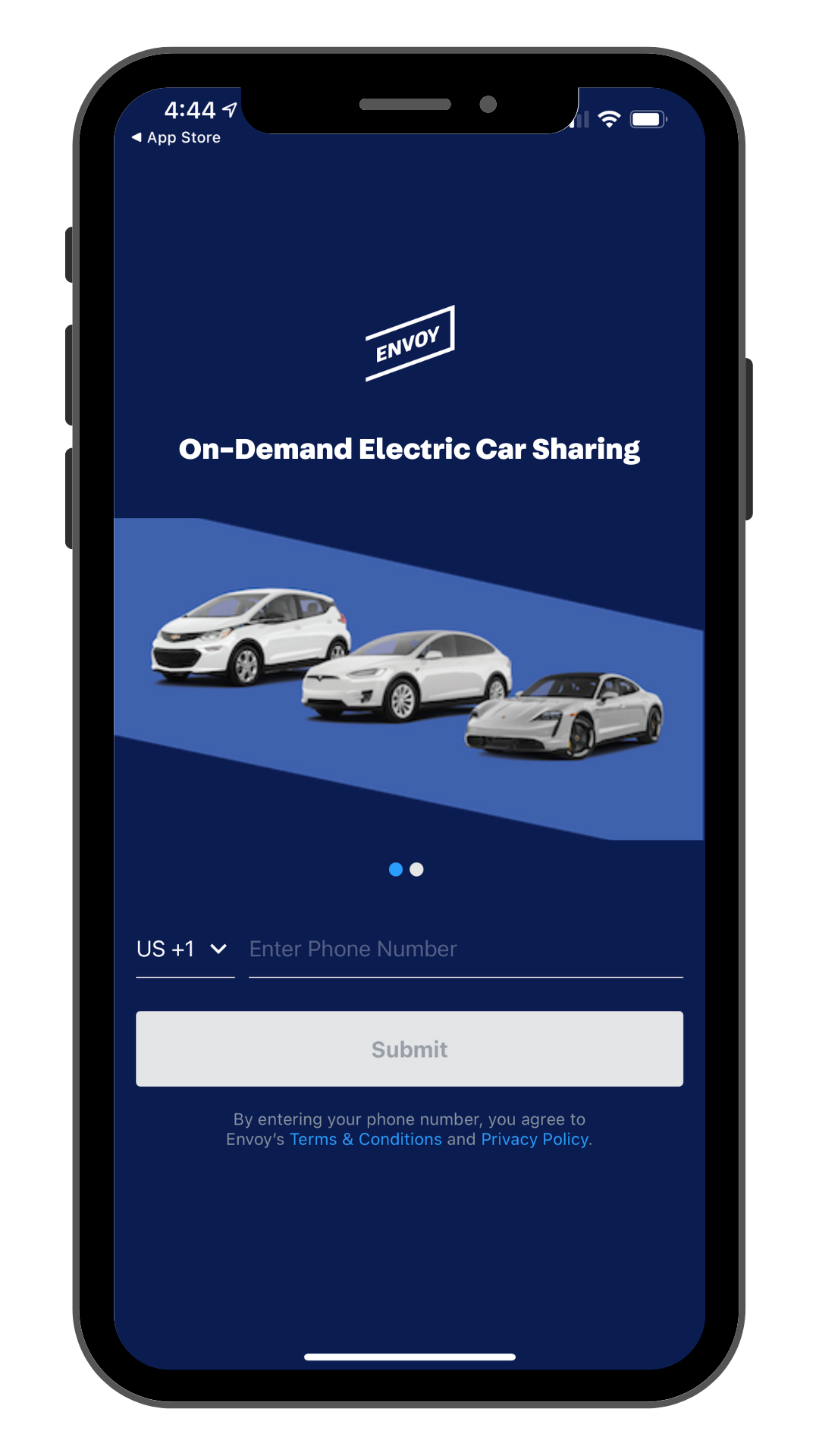
Create Your Account
Download the Envoy Mobility app from the App Store or Google Play and create your account. A license photo and a quick selfie are all it takes to get ready to select your ride.
Booking Your Ride
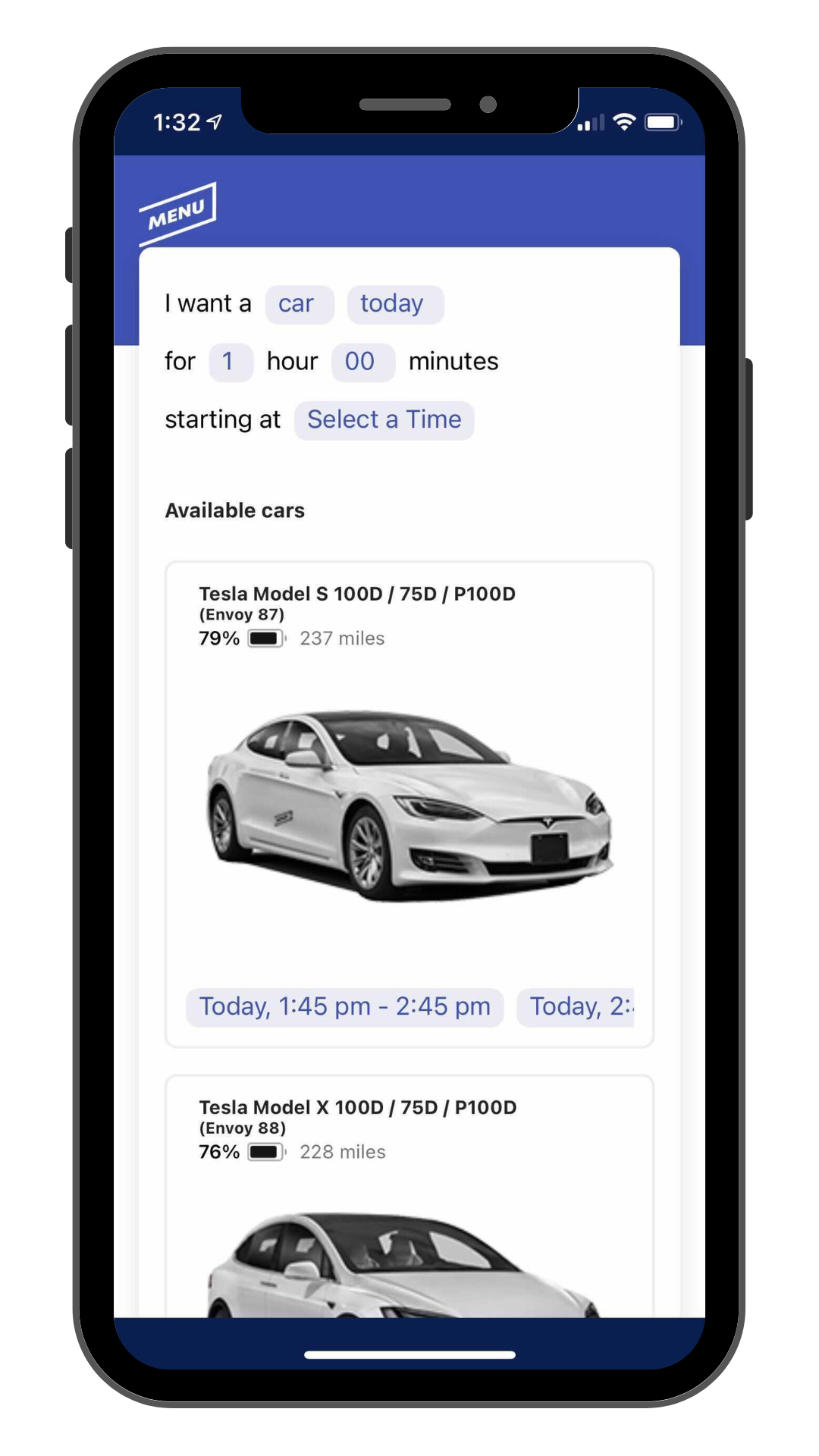
Need wheels during your stay? Book by the hour or day, and reserve in advance if you like. In the Communities section of the Envoy Mobility app, select or type your hotel’s name and enter the community access code from your hotel, usually shared at check-in or in the property’s pre-check-in emails. Then pick an available vehicle, enter your card info, confirm, and use your phone to lock, unlock, and go!
Wrapping Up
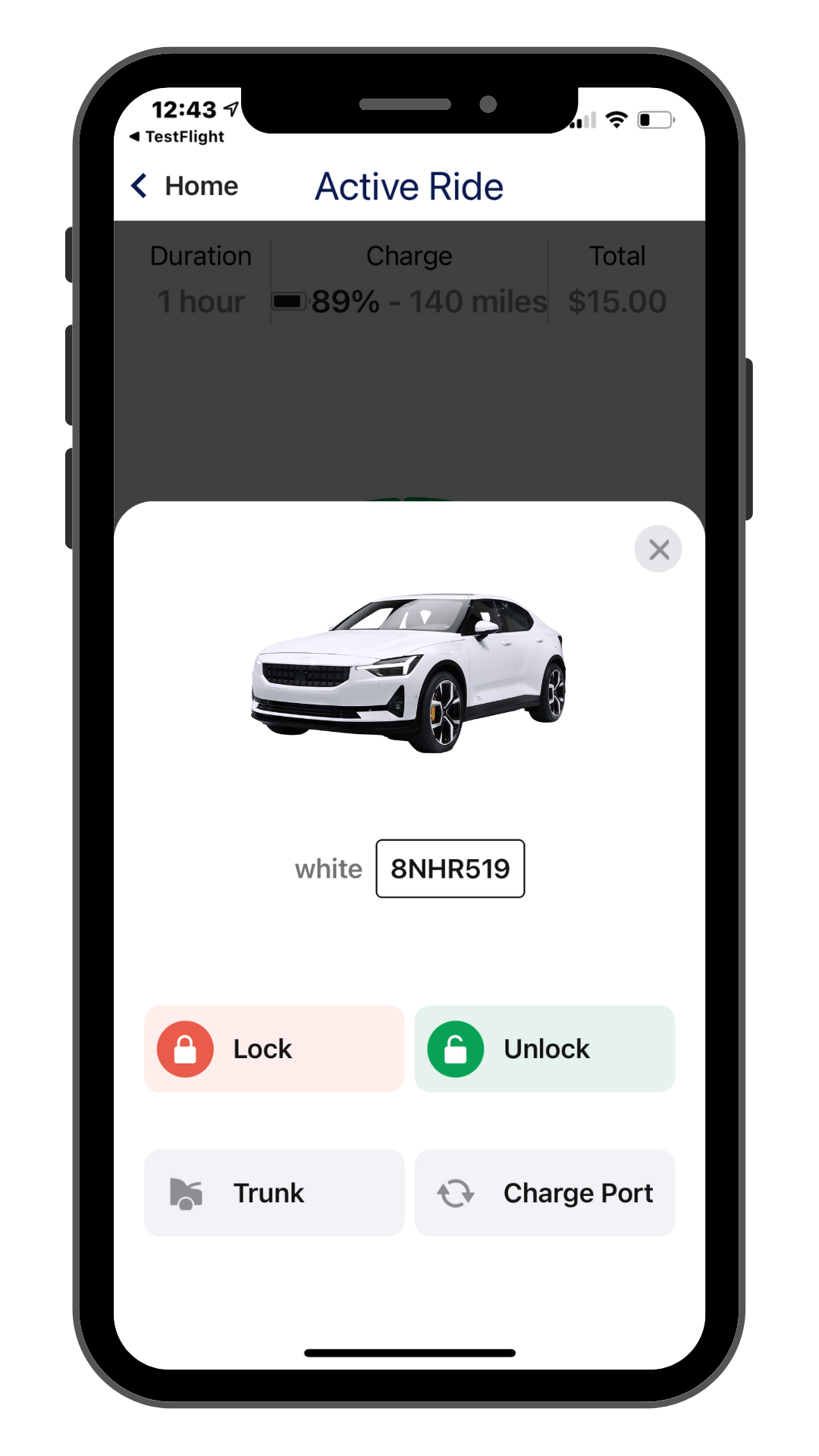
When your adventure ends, return the vehicle to valet, plug it into its designated charger (valet can help with this), and tap “End Reservation” in the app. If anything goes awry, report it through the app or reach out to customer support.
Your App Experience
Frequently Asked Questions
For Hotel Guests
How does the app work?
Steps:
Download the Envoy Mobility app from the App Store or Google Play Store.
Create your account: Enter your phone number and email.
Register: Upload your driver’s license and credit/debit card and take a selfie so we know you’re you.
Book a vehicle by the hour or day: In the Communities section of the app, select or type your hotel’s name and enter the community access code from your hotel (usually shared at check-in or in the property’s pre-check-in emails) to see the vehicles at your location. Choose if you want a car today or on another date and for how long, then use the scroll bar to select from the available time slots for your preferred vehicle. Once approved, click Begin Reservation or Start Ride, which unlocks the vehicle. Use the app to unlock and lock the car during your booking. The Envoy Mobility app comes equipped with Bluetooth for access without mobile phone reception.
Ending your reservation: Return the vehicle to valet, plug it into its designated charger (valet can help with this), click End Reservation in the app, and follow the prompts to submit. Once the Thank You page pops up, you’re set to go!
Where do I find my community access code?
Your hotel usually provides the community access code at check-in or in pre-check-in emails from the property. If you cannot find it, contact your hotel.
What do I do when I get back? To end your reservation:
It’s easy!
1. Return the vehicle to valet.
2. Plug the vehicle into its designated charger. Valet can help with this.
3. End Reservation in the app and follow the prompts to submit. Once the Thank You page pops up, the car will lock and you’re good to go.
Note: your account is billed from the beginning of your reservation until it is successfully ended in the app (or the full reservation time).
How do I get help during my stay?
Call the Envoy Customer Support Line at 1-888-610-0506 or email info@envoythere.com, 7 days a week, 7am to 11:45pm PST. You can also reach us through the Help section of the Envoy Mobility app.
Corporate | Technology | Locations | Blog | Press | Contact Us | Terms of Service | Privacy Policy | Getting Started