
your first tesla
5 minutes to get going
1. Unlock
Open the Envoy Mobility app and unlock the car.
2. Start driving
Put your foot on the brake. Select D on the screen, or swipe the car icon on the left side of the screen forward. Press the accelerator gently.
3. Stop and park
Take your foot off the accelerator. The car slows down automatically thanks to regenerative braking. Put the car in Park when you’re done.
4. Reverse
Select R on the screen, or swipe the car icon on the left side of the screen backward. Check your mirrors and cameras. Don’t rely only on the screen.
5. Charge
Find a Supercharger on the map and plug in. The car shows your charging status. When you’re done, unplug and go.
6. Temperature and voice
Tap the temperature at the bottom of the screen to choose your setting. Need something else? Tap the microphone and just say what you want.
shifting gears
Model 3 and Model Y shift on the center touchscreen, with a manual option on the overhead console. Model X also shifts on the touchscreen by swiping up or down, with manual P R N D buttons underneath the center console.
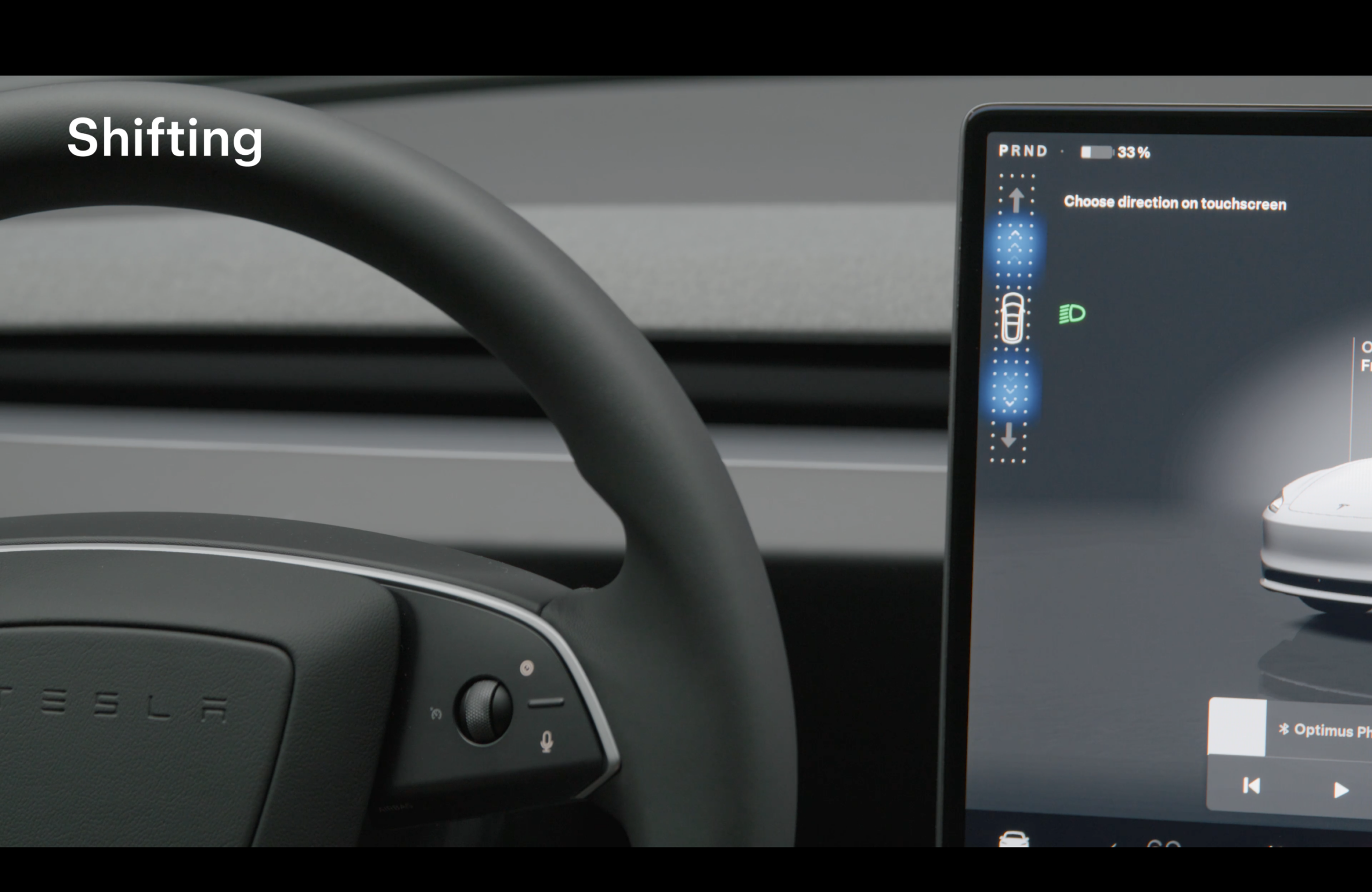
On the touchscreen
Tap D for Drive or R for Reverse, or swipe the car icon on the left side of the screen forward or backward. Put the car in Park when you’re done.
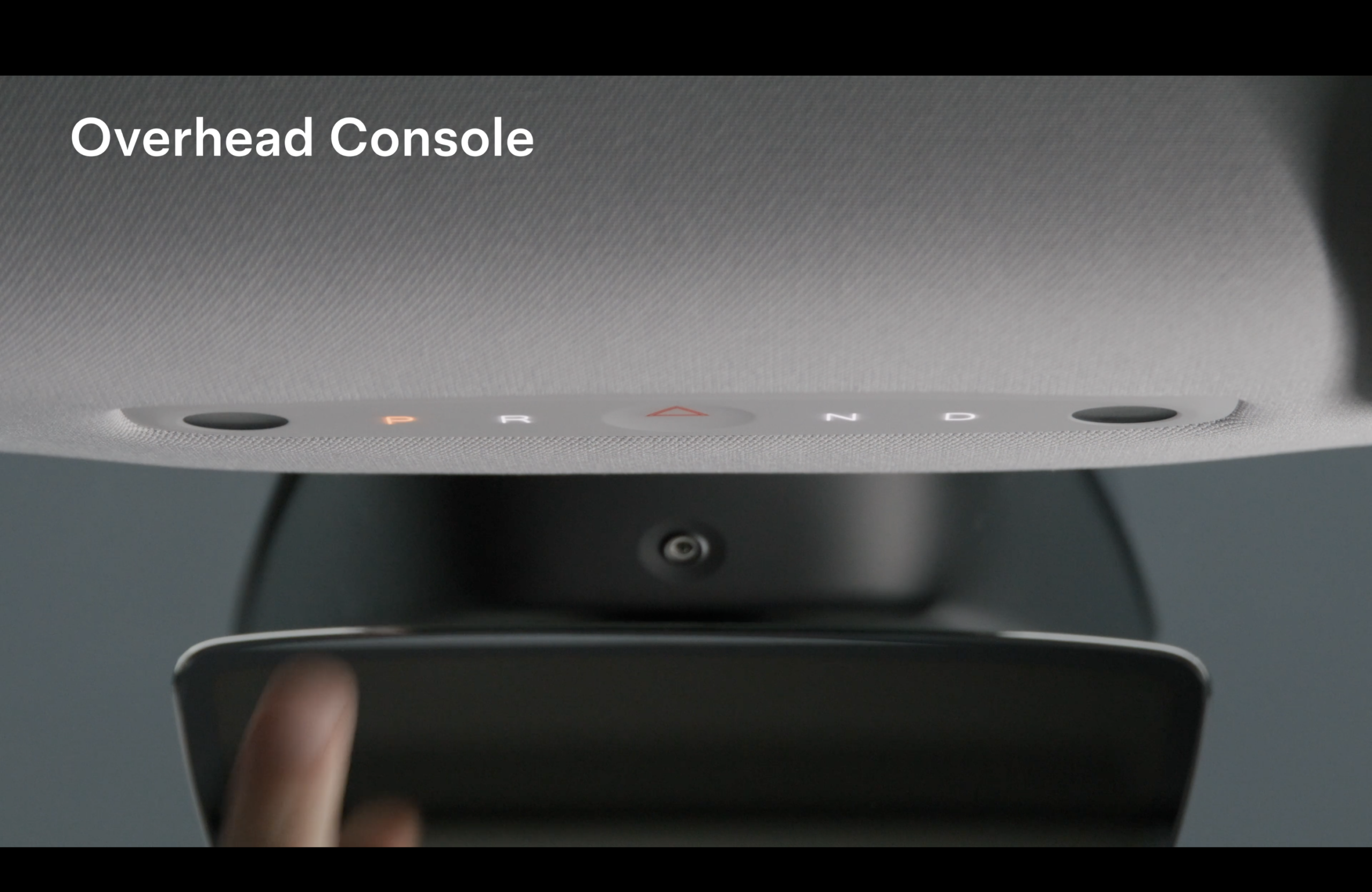
Manual: overhead console
Model 3 and Model Y also have manual P R N D buttons on the overhead console. The hazard light button sits between R and N.
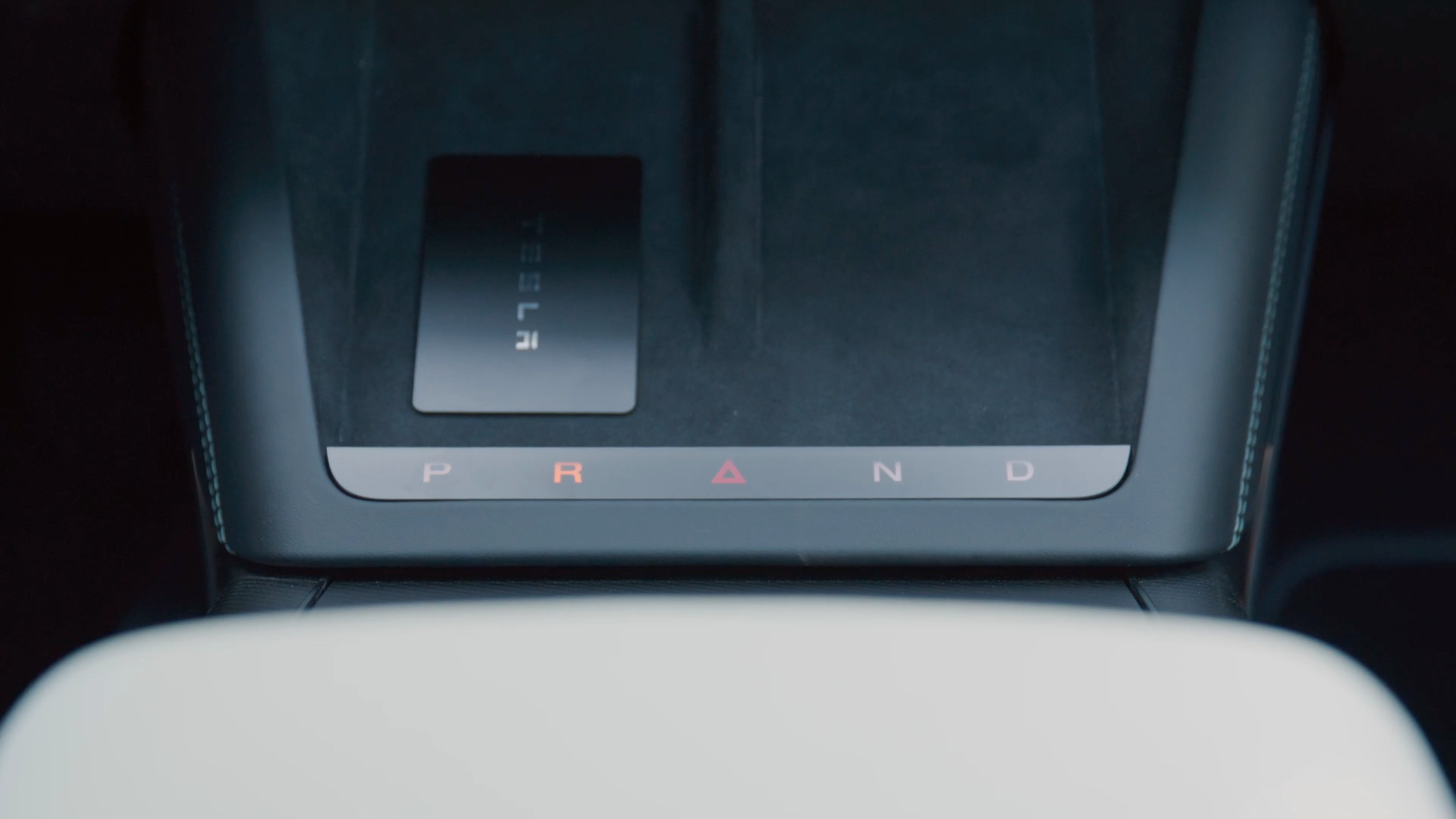
Manual: Model X center console
On Model X, the manual P R N D buttons sit underneath the center console, close to the wireless phone charger. No touchscreen needed.
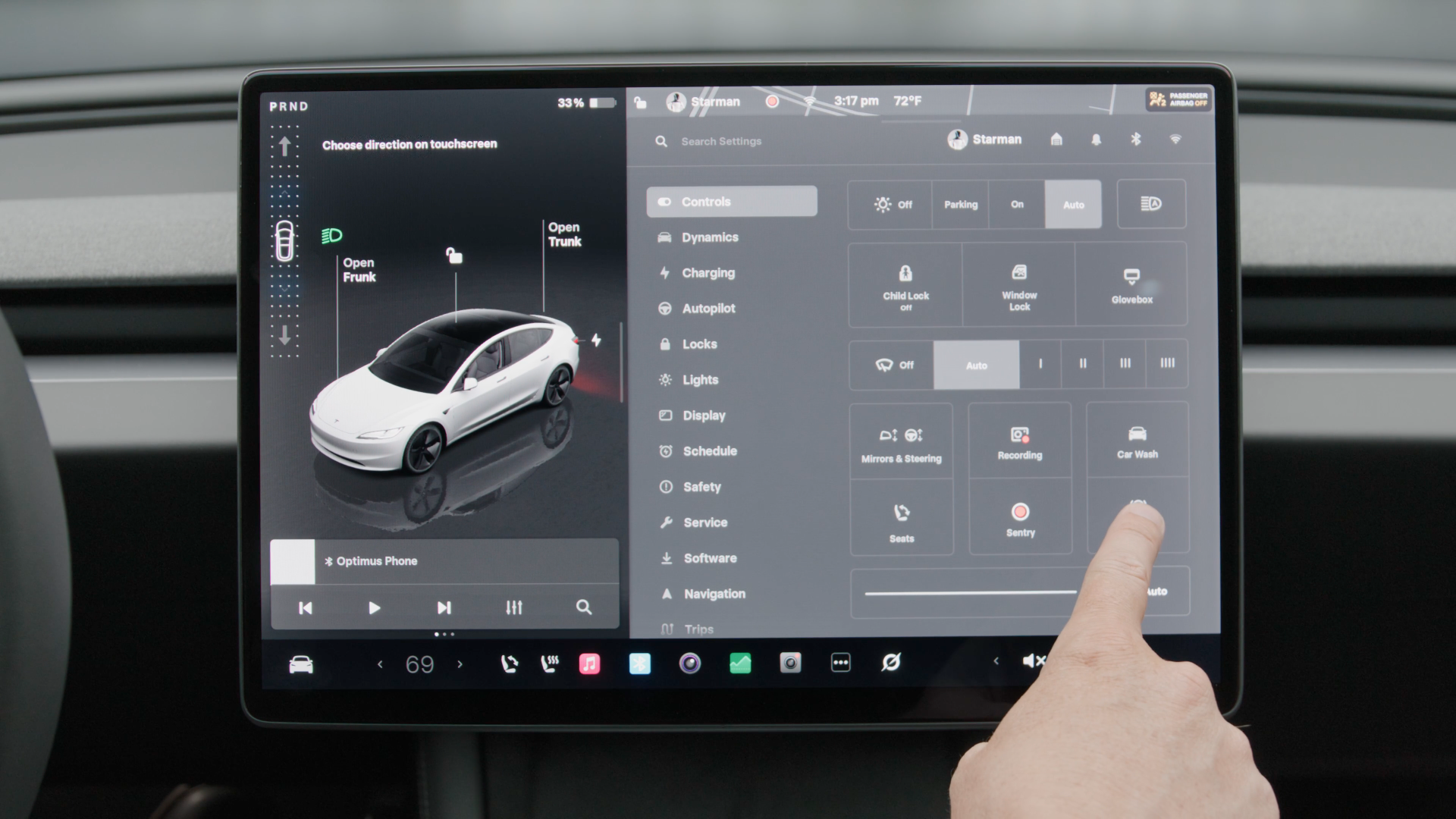
Need Neutral?
To shift to Neutral, go to Controls on the center console screen and tap Neutral.
what each mode does
Your Tesla may offer three stopping modes. Here is how each one feels behind the wheel.
Hold (recommended)
Uses regenerative braking to slow the car to a complete stop, then automatically applies the brakes so the car will not roll or creep. This enables one-pedal driving and maximizes battery range.
Creep
Mimics a traditional gas-powered automatic. The motor keeps applying a little torque, so the car slowly moves forward or backward when you release the brake pedal.
Roll
Lets the car free-roll like it is in neutral when you let off the pedals. It can drift on flat surfaces or roll backward on hills.
Note: newer Model 3 and Model Y software updates may lock the vehicle to Hold mode, removing the Creep and Roll options.
driver controls
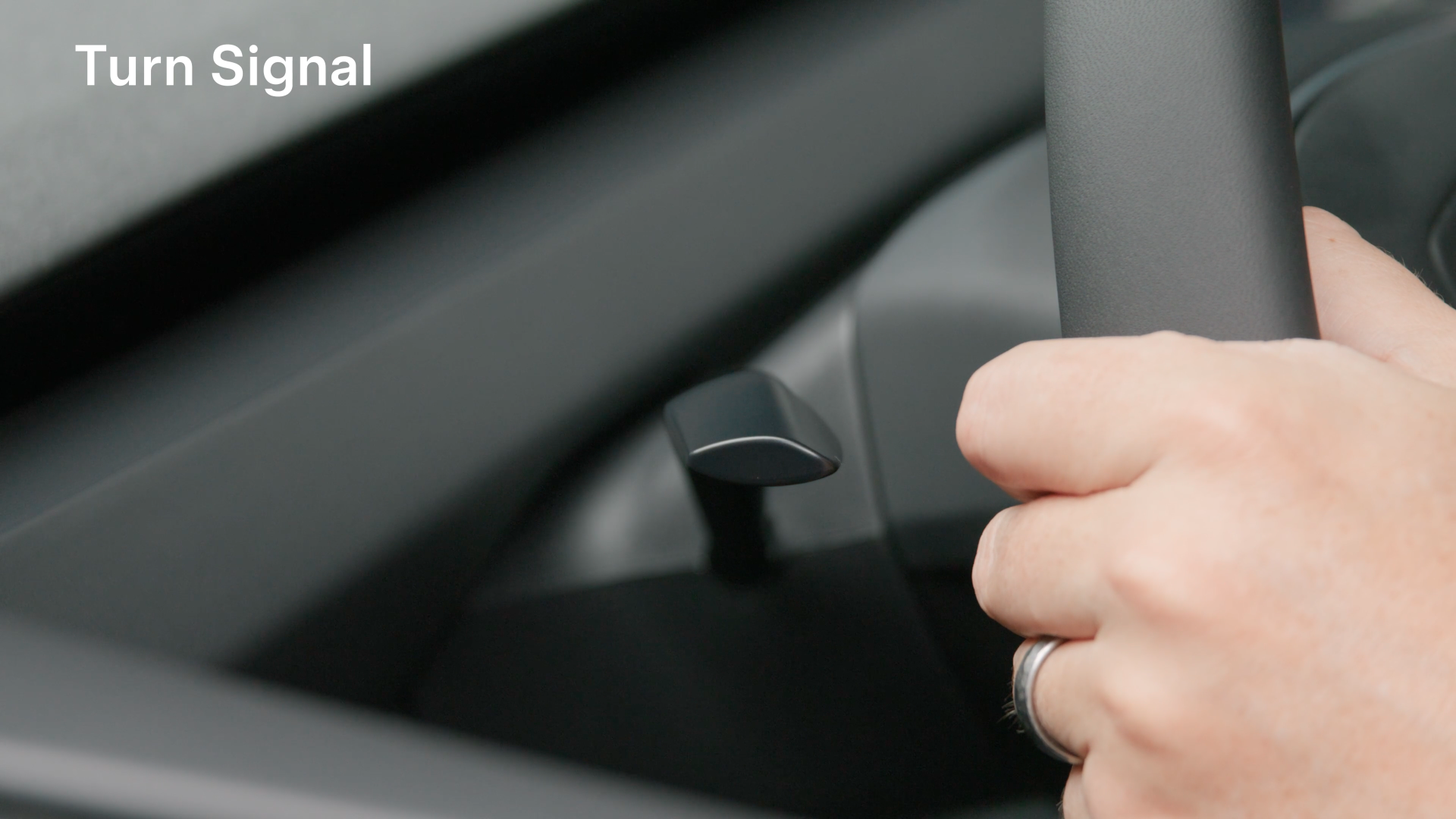
Turn signals
The turn signals are on the steering wheel. They turn off automatically once your Tesla detects that you’ve completed a maneuver.
Horn
Press the center of the steering wheel to honk.
know your tesla
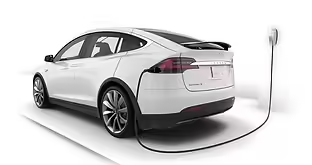
Charge port
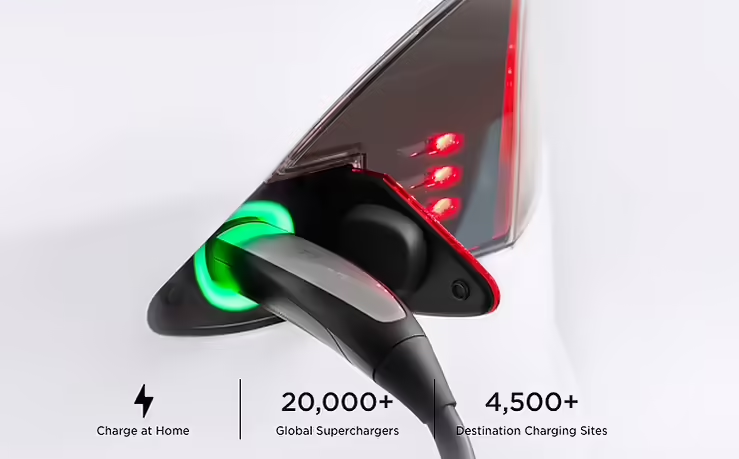
The charge port is part of the left rear tail light. Tap the light, or open the port from the touchscreen.
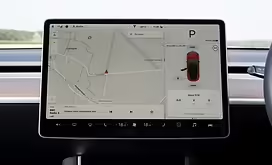
Touchscreen
Unlock doors, unlock the charge port, navigate to your destination, find chargers and more. If you see a “Tap card” message, press unlock in the Envoy Mobility app.
choose your model

Tesla Model X
Est. range with full battery: 250 miles
See the dashboard for battery level. The touchscreen operates almost everything in the car, including releasing the charger from the charge port, opening and closing the automatic doors, and locating charging stations. Shift on the touchscreen or with the manual P R N D buttons underneath the center console. Use the charging adapter at non-Tesla chargers and leave it with the vehicle to avoid fines.

Tesla Model S
Est. range with full battery: 285 miles
See the dashboard for battery level. The touchscreen operates almost everything in the car, including releasing the charger from the charge port and locating charging stations. To turn on, press the brake pedal. Use the charging adapter at non-Tesla chargers and leave it with the vehicle to avoid fines.

Tesla Model 3
Est. range with full battery: 250 miles
See the touchscreen for battery level. The touchscreen operates almost everything in the car, including releasing the charger from the charge port. If the screen says “tap card on console,” press unlock in the Envoy Mobility app. To turn on, press the brake pedal. Shift on the touchscreen or with the manual buttons on the overhead console. Use the charging adapter at non-Tesla chargers and leave it with the vehicle to avoid fines.
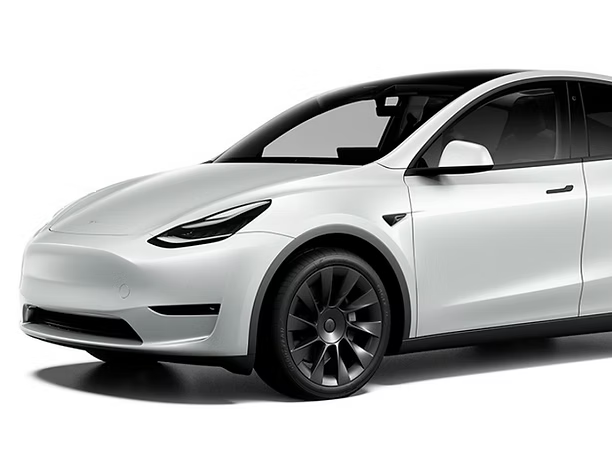
Tesla Model Y
Est. range with full battery: 303 miles
See the touchscreen for battery level. The touchscreen operates almost everything in the car, including releasing the charger from the charge port. If the screen says “tap card on console,” press unlock in the Envoy Mobility app. To turn on, press the brake pedal. Shift on the touchscreen or with the manual buttons on the overhead console. Use the charging adapter at non-Tesla chargers and leave it with the vehicle to avoid fines.
additional info
charging
Charging your Tesla is easy and free at your Envoy-located property.
SUPERCHARGING FEES
Currently, Envoy is not covering the cost of supercharging Envoy vehicles. The driver is responsible for any supercharging fees, idle fees, as well as subject to a $2.00 administrative fee.
Learn about Tesla’s idle fees >
Questions? info@envoythere.com
adapter
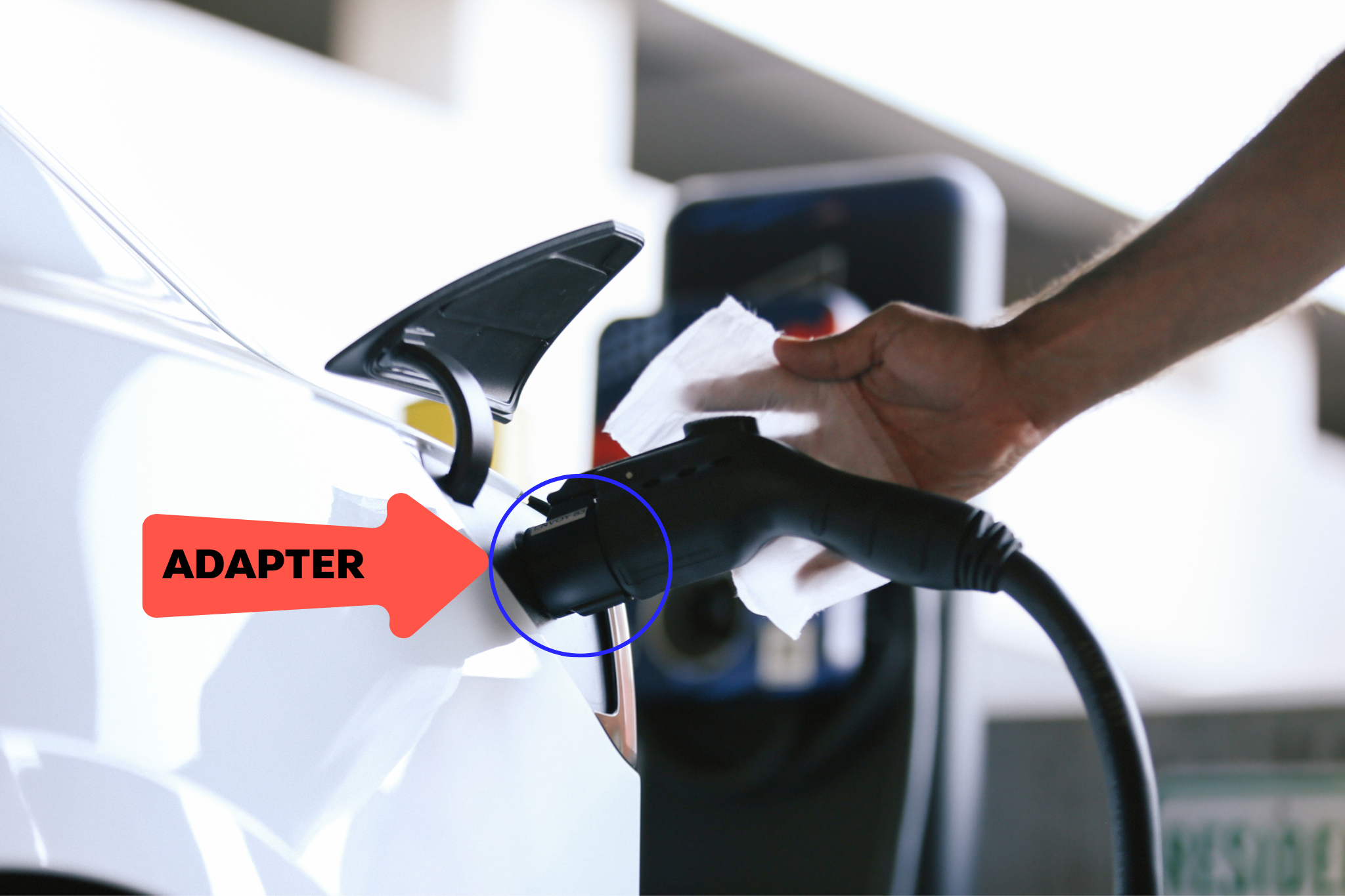
An adapter is required to charge a Tesla at a non-Tesla charging station. Simply slide the adapter onto the end of the charging handle and insert it into the vehicle charge port.
Each Envoy vehicle comes with an adapter. Keep it with the vehicle. $100 fine if lost.
If you need a charge on the go, use the Tesla touchscreen to locate a Tesla charger nearby.
HOW ENVOY’S CAR SHARING APP WORKS
The goal of Envoy is total simplicity. When you need a car, it’s ready for you. When you don’t need it, you don’t have to think about it. No car payments, no buying gas, no insurance, no maintenance, no cleaning. Just a sweet ride to get you where you want to go whenever you want it.